Buying an SSD: NVMe or SATA, and will it fit your device?
How to tell which SSD your laptop, PC or PlayStation 5 takes, SATA versus NVMe and PCIe generations, the right capacity, and how to avoid fake drives. With the most compared drives right now.
By the Pricelens team · Updated Oct 31, 2026 · 5 min read
Know what your device supports
The most important step before buying: which slot does your device have? Look up the laptop or motherboard model and read the specs or manual.
- 2.5-inch SATA: looks like a regular hard drive and fits most older laptops and PCs. Much faster than a spinning hard drive.
- M.2 NVMe: a small stick several times faster than SATA, found in most recent devices.
- M.2 SATA: the same shape as NVMe but at SATA speed. Some slots take only one of the two, so check.
PCIe generations and speed
NVMe drives come in PCIe 3, 4 and 5 generations, each faster than the last. A newer drive works in an older slot, at the slot’s speed. For daily use and games the difference between gen 3 and 4 is small in practice, and gen 5 helps only with moving very large files. A PlayStation 5 needs a PCIe gen 4 NVMe drive, preferably with a heatsink.
Capacity and quality
- Capacity: 512 GB is enough for the system and programs; 1 TB is more comfortable with games, since modern games are big.
- TBW: the terabytes written the maker guarantees; a higher figure means a longer life under heavy use.
- Warranty: good drives usually come with 3 to 5 years.
Beware of high-capacity drives priced far below the market from unknown sellers: some report a capacity they do not have and lose your data once full. Buy from a known seller and compare the price across stores.
Most compared drives right now
Live prices: products two or more stores sell, most compared first. Prices change through the day.

Sandisk
SanDisk Portable SSD 1TB - Up to 800MB/s, USB-C, USB 3.2 Gen 2 - SDSSDE30-1T00-G26
FromEGP 7,199.00to EGP 9,764.00
At 6 stores

Tefal
Tefal Express Steam Steam Iron , 2200 Watt, Blue Boreal - Fv2831E2
FromEGP 1,699.00to EGP 1,850.00
At 5 stores

Samsung
SAMSUNG 990 PRO SSD 2TB PCIe 4.0 M.2 Internal Solid State Drive, Fastest Speed for Gaming, Heat Control, Direct Storage an...
FromEGP 23,500.00to EGP 39,999.00
At 4 stores

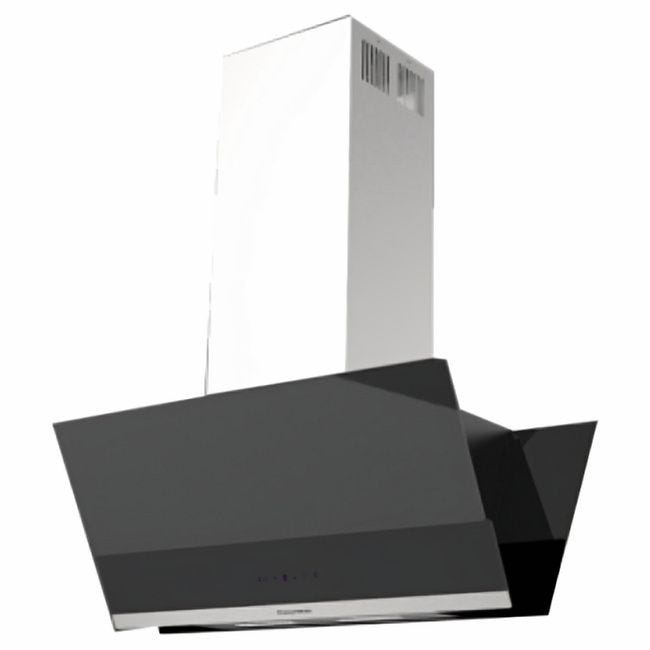
Ecomatic
Ecomatic Digital Chimney Built-In Decorative Hood With Remote Control, 90 cm, Stainless Steel Black - H9110IMRTX
FromEGP 24,601.00to EGP 28,999.00
At 3 stores

Lexar NS100 128GB 2.5 inch SATA III Internal SSD
FromEGP 1,399.00to EGP 1,850.00
At 3 stores